Getting started with Apache Click and Eclipse Galileo

Posted by admin | Posted in Code Snippets, General Programming, Tools | Posted on 18-02-2010

3

Last couple of days I read here and there about Apache Click, which is now in version 2.1.0. It looks preety cool and easy to learn, so I decided to give it a try and see for myself.
I understand that its cool to learn things using vi and shell only, but when you tried many frameworks before, you know how things works, you just want to see how or how not, productive you can be with the new framework, thats why I jump straight to the IDE.
And here, first surprise, with apache click its’ not that easy, well, I’m mean its still easy but I have encountered a few problems, and right now I would like to share the solution.
First of all, I did not tried all the examples in the apache click user guide yet, haven’t build anything usefull and definietly I’m not an Apache Click expert, I think I have figured out how to plug it to Eclipse and I think this is good start :) .


Here you have a few points to build your Apache Click IDE:
1. First of all download latest and greatest Eclipse Galileo from here – choose Eclipse for Java EE developers
2. Download Apache Click libraries from here – choose version 2.1.0
3. Download Apache Click IDE from here – note that it contains Click version 1.5 and it was last updated in November 2008 – maybe I’m missing something here?
4. Unzip your ClickIDE and copy the ‘features’ and ‘plugins’ folders into your Eclipse home directory
5. Unzip your latest click libraries and keep it for later :)
6. Start your Eclipse IDE and create new ‘Dynamic Web Project’

Choose target name, in this case ‘ClickDemo2′, select your target runtime as Tomcat 6+ etc.
7. Under configuration combo box, select custom and click ‘Modify’

8. Select ‘Click’ in Project Facet List and save the configuration as click config

9. Once you have your configuration created, dynamic web project screen should look like in the following screenshot:

10. The rest of the settings you can leave as it is, just click ‘Next’ up to the point when you finish creating new dynamic web project.
11. After your project is created it will have the structure like in the following screen:


Notice that there are click libraries from version 1.5, which is no good, we want to use the latest version which is 2.1.0.
12. Copy the files ‘click-2.1.0.jar’ and ‘click-extras-2.1.0.jar’ into the same lib folder where the old libraries are found.
13. Delete old libraries and refresh the project tree under eclipse (right click on the project node and select ‘Refresh’), now you will see the new libraries come up in the lib folder.
14. Open your web.xml file under ‘WebContent/WEB-INF/’ folder and change the class name of the main Click Servlet, from ‘net.sf.click.ClickServlet’ to ‘org.apache.click.ClickServlet’ in ’servlet-class’ declaration.
15. With Eclipse, select the project node and click ‘New’ -> ‘Other’, choose ‘Click Page’ under ‘click’ directory.

16. Fill out the necessary fields for your new click page as below:

17. Name the file ‘index.htm’ and click ‘Finish’
18. Under the page java source file, fix the Page class by using the page from the: org.apache.click.Page instead of the old path.

package com.softwarepassion;

import java.util.Date;

import org.apache.click.Page;


public class Index extends Page {
   
    private Date time = new Date();
   
    public Index(){
        addModel("time", time);
    }

}

Modify your ‘index.htm’ using html editor to look something like this:

<html>
  <head>
    <META HTTP-EQUIV="Content-Type" CONTENT="text/html;charset=UTF-8">
    <title>Blank</title>
    $imports
  </head>
  <body>
  $time
  </body>
</html>

19. Start up your project in tomcat. The page should display current time!


Additional Comments:
I know that this is just a quickfix, and I just cannot belive that there is no proper eclipse plugin using the latest click framework, which would be up to date, if you know any, than please comment and save me and my readers precious time.

Thank you.

Jasperberry – the most dynamic reports ever.

Posted by admin | Posted in Code Snippets, General Programming, Tools | Posted on 17-02-2010

0

Today I will describe in short my latest and simplest quick and dirty trick, generating jasper report dynamically. Jasperberry is a component written very quickly to help me
generate pdf report in a situation where I don’t know the number of columns I will have, I don’t know their widths, the data they contain etc, all is generated at runtime dynamically.
I know that there is DynamicJasper project but it seems to be dead, and its dead in a very strange way, I mean, I see that the authors commit new code but there is no chance to get any support unless, I guess, you pay for it.
With dynamic jasper I couldn’t generate report with polish fonts displayed properly, tried many different tricks, no support on the forum, no support on stack overflow, no nothing. After 2 days I have realized that I will write my own library quicker to solve my problem than get an answer from the dynamic jasper community (if there is any).
So here we have: jasperberry!


Don’t expect too much from it but if you want to display simple table with data, dynamic columns, adjustable fonts and colors than this is it.

In fact you don’t have to even know object properties to generate the report, we will use Apache DynaBeans for that:

This is a simple example code snipped showing you how to get started with the simplest and most dynamic reporting library ever (as well as lacking features probably but we hope its enough for simple projects)

This example assumes the following:

1. You want simple report
2. You dont have to know the object which properties you want to display in advance, by this I mean you can create report columns dynamically, and by using apache dyna beans your objects don’t have to even exists. You just dynamically create them and inject them into the report.

Here is an example test class showing you how to use jasperberry, for more info please contact us directly at softberries.com
Code:

public class JRXMLBuilderTest {

    private static List<JBColumnBean> columns;

    public JRXMLBuilderTest() {
    }

    @BeforeClass
    public static void setUpClass() throws Exception {
        columns = new ArrayList<JBColumnBean>();
        JBColumnBean col1 = new JBColumnBean();
        JBColumnBean col2 = new JBColumnBean();
        JBColumnBean col3 = new JBColumnBean();
        JBColumnBean col4 = new JBColumnBean();
        JBColumnBean col5 = new JBColumnBean();
        JBColumnBean col6 = new JBColumnBean();
        JBColumnBean col7 = new JBColumnBean();
        col1.setPreferredWidth(60);
        col1.setProperty("name");
        col1.setTitle("Imię");
        col2.setPreferredWidth(60);
        col2.setProperty("surname");
        col2.setTitle("Nazwisko");
        col3.setPreferredWidth(160);
        col3.setProperty("comment");
        col3.setTitle("Komentarz");
        col4.setPreferredWidth(100);
        col4.setProperty("comment2");
        col4.setTitle("Komentarz");
        col5.setPreferredWidth(100);
        col5.setProperty("comment3");
        col5.setTitle("Komentarz");
        col6.setPreferredWidth(100);
        col6.setProperty("comment4");
        col6.setTitle("Komentarz");
        col7.setPreferredWidth(100);
        col7.setProperty("comment5");
        col7.setTitle("Komentarz");
        columns.add(col1);
        columns.add(col2);
        columns.add(col3);
        columns.add(col4);
        columns.add(col5);
        columns.add(col6);
        columns.add(col7);
    }

    @AfterClass
    public static void tearDownClass() throws Exception {
    }

    @Before
    public void setUp() {
    }

    @After
    public void tearDown() {
    }

    /** * Test of build method, of class JRXMLBuilder. */
    @Test
    public void testBuild() {
        try {
            System.out.println("build");
            List<JBReportElement> elements = new ArrayList<JBReportElement>();
            //col header font
            JBFont colHeaderFont = new JBFont();
            colHeaderFont.setBold(true);
            colHeaderFont.setSize(10);
            colHeaderFont.setForegroundColor("#555555");
            //detail font
            JBFont detailFont = new JBFont();
            detailFont.setSize(6);
            detailFont.setForegroundColor("#000000");
            detailFont.setPdfEncoding("Cp1257");
            JBPage page = new JBPage();
            JBReport report = new JBReport(page, colHeaderFont, detailFont, "#CCCCFF", "#DEDEDE", "#FFFFFF");
            JBFont titleFont = new JBFont();
            titleFont.setBold(true);
            titleFont.setSize(20);
            titleFont.setForegroundColor("#FF0000");
            titleFont.setPdfEncoding("Cp1257");
            //add title elements
            elements.add(new JBStaticTextElement("Hello World!", 450, 10, 300, titleFont));
            elements.add(new JBImageElement("C:\\\\Documents and Settings\\\\admin\\\\Moje dokumenty\\\\NetBeansProjects\\\\JASPER_BERRY\\\\test.jpg", 0, 0, 350, 242));
            report.setTitleElements(elements);
            JRXMLBuilder instance = new JRXMLBuilder(columns, report);
            boolean expResult = true;
            boolean result = instance.build();
            JasperReport jr = JasperCompileManager.compileReport("jasperberry_by_softberries.jrxml");
            //PREPARE SOME DATA
            DynaProperty[] props = new DynaProperty[columns.size()];
            for (int i = 0; i < columns.size(); i++) {
                props[i] = new DynaProperty(columns.get(i).getProperty(), String.class);
            }
            BasicDynaClass dynaClass = new BasicDynaClass("tester", null, props);
            List<DynaBean> beans = new ArrayList<DynaBean>();
            for (int i = 0; i < 100; i++) {
                DynaBean db = dynaClass.newInstance();
                db.set("name", "Krzysztof " + i);
                db.set("surname", "Grajek " + i);
                db.set("comment", "Komentarz ");
                db.set("comment2", "Komentarz ");
                db.set("comment3", "Komentarz ");
                db.set("comment4", "Komentarz ");
                //
                db.set("comment5", "Komentarz ");
                beans.add(db);
            }
            JasperPrint jp = JasperFillManager.fillReport(jr, null, new JRBeanCollectionDataSource(beans));
            JasperExportManager.exportReportToPdfFile(jp, "jasperberry.pdf");
            assertEquals(expResult, result);
        } catch (Exception ex) {
            Logger.getLogger(JRXMLBuilderTest.class.getName()).log(Level.SEVERE, null, ex);
        }
    }
}

You should find similar snippet in a test suite of the project.
The project itself is licensed under LGPL and its available from sourceforge here

Free file sharing service based on Amazon S3

Posted by admin | Posted in Tools | Posted on 26-04-2009

3

storage
A short note about a brand new rapidshare competition based on Amazon S3 called Storage For Free (www.storage43.com). Without registration you can share here your project files or basically anything you want to share quickly (up to 200 MB no registration required and the file is alive on the server for 30 days), if you are still unhappy you can register for free and get 500MB for a single upload. This is another service that proves growing popularity of Amazon Web Services which in my opinion are great!

Enjoy!

Continuous Integration with CruiseControll.NET

Posted by admin | Posted in Tools | Posted on 09-04-2009

2

Today I will try to bite quite a big topic which is continuous integration setup for .NET application build using Visual Studio 2008, Vistual Studio Unit Tests and Cruise Control.NET.
Continuous integration, in a few simple words works the following way: there are a number of developers working on a project, developers use subversion or other code versioning system to manage their source code. When they work on the project they commit changes to the subversion repo and from the other side another part of the process called ‘continuous integration server’ checks this code out every few minutes, and tries to build it and run unit tests on it, to see if it is so far all ok.
That was probably the shortest description of continuous integration process you would ever be able to find on the internet ;) .

So, how do you set up your own? Well, actually its not that difficult but looks scary at the frist sight. First of all of course, you would have to download and install all software needed, and this is:

That should be it on the server side! While installing just follow the defaults and you should be fine. I do install Cruise Control directly on the C: drive which ends up as C:CruiseControl.NET but you can install it wherever you want, I do it this way as its easier for me to write scripts if neccessary (short pathes instead of long ones).

Once CC.NET is installed you should be able to run it. You have two options, first one run it as a console app or run it as a service. For the setup, I would recommend running it as a console, make sure that CC.NET service is not running and double click ccnet.exe file inside C:CruiseControl.NETserver directory or any other ’server’ directory depending on your installation path.
If all went fine you can see the CC.NET dashboard in your browser. Just browse to the url ‘http://localhost/ccnet’ where ‘ccnet’ is a virtual directory created by Cruise Control application setup.
capture1

Ok then, once all is runnning and installed we can start configuring our CC server. To do that you would need to open ccnet.config file in your favourite text editor. Inside ccnet.config you will be able to set your project which should be build and tested by Cruise Control. The ccnet.config file consist of a number of project sections. You can have as many ‘project sections as you wish, all contained inside the root element of the document.

<cruisecontrol xmlns:cb="urn:ccnet.config.builder">

  <project name="Project One">
  </project>

  <project name="Project Two">
  </project>

</cruisecontrol>

Lets configure one of the projects, all elements described above would be a subnodes of the project element. First of all we need to specify a working directory for our project. Simply create a dir on your drive somewhere and add a path to it between ‘workingDirectory’ elements. This directory will be used to download the subversion sources.

<workingDirectory>c:projectone</workingDirectory>

After we specify ‘workingDirectory’ we have to specify a trigger which will call updates on our source code, checked out form the subversion. Right here we specify that CC.NET should check the subversion repo every 60 seconds and if it finds any modifications it should run the whole continuous integration process.

<triggers>
         <intervalTrigger seconds="60"/>
     </triggers>

To allow cruise controll download/update your sources, we need to specify the adress of the subversion repository as well as username and password

<!--set the sourcecontrol type to subversion and point to the subversion exe-->
    <sourcecontrol type="svn">
      <executable>C:Program FilesSubversionbinsvn.exe</executable>
      <workingDirectory>C:projectone</workingDirectory>
      <trunkUrl>http://svn_server.com/projectone</trunkUrl>
      <autoGetSource>true</autoGetSource>
      <username>your_username</username>
      <password>your_password</password>
    </sourcecontrol>

This section was pretty easy, after we specify working directory, trigger and subversion settings we are ready to add sections responsible for building, testing and publishing our results.
All of the mentioned should happen inside the ‘tasks’ section so, just after the ’sourcecontrol’ element add the following:

<tasks>
      </tasks>

Inside the ‘tasks’ we will add the elements for building the project/solution (msbuild element), unit testing (2 times ‘exec’ element), publishing our work to a separate directory (‘buildpublisher’ element) as well as publish our test results to CC.NET dashboard (‘publishers’ element).

To do all that, we need to first build our project. We are going to use MSBuild.exe which you should be able to find in C:WINDOWSMicrosoft.NETFrameworkv3.5 if you are using .NET 3.5 version. Instead of building single project we are going to build a whole solution. To build a solution you need to specify the place where the solution file exists as well as the name of the solution file itself. Depending on the project size and characteristics you have to set the timeout option to suit your needs and to prevent CC.NET to timeout before the project have a chance to actually build.

<!-- Configure MSBuild to compile the updated files -->c:
      <msbuild>
        <executable>C:WINDOWSMicrosoft.NETFrameworkv3.5MSBuild.exe</executable>
        <workingDirectory>C:projectonetrunk</workingDirectory>
        <projectFile>projectOne.sln</projectFile>
        <buildArgs>/noconsolelogger /p:Configuration=Debug</buildArgs>
        <targets></targets>
        <timeout>300</timeout>
        <logger>C:CruiseControl.NETwebdashboardbinThoughtWorks.CruiseControl.MsBuild.dll</logger>
      </msbuild>

Ok, so we are already able to automatically build our project and this is really cool but what would be continuous integration without executing unit tests :) . As it makes development easier, for my projects, wherever possible I use built in Unit Test functionality in Visual Studio 2008.In my opinion, VS Unit Tests are a bit more tricky to set up than NUnit on CC.NET, especially publishing results part of it) but the developmnet on the other hand is easier and I will stick to it.
We need to do the following three things to properly execute tests. First of all we need to run tests using MSTest.exe, this part is pretty easy but before doing that we need to delete previous test results or otherwise our MSTest would complain. Therefore you have to add into your tasks the two following ‘exec’ sections.
First one to delete any previouse test results using bat file (deleteTestLog.bat) with single command:

DEL C:projectoneresults.trx
<exec>
            <executable>deleteTestLog.bat</executable>
            <baseDirectory>C:CruiseControl.NETserver</baseDirectory>
            <buildArgs></buildArgs>
            <buildTimeoutSeconds>30</buildTimeoutSeconds>
        </exec>

Second ‘exec’ section running the actual unit tests:

<exec>
            <!--Call mstest to run the tests contained in the TestProject -->
            <executable>mstest.exe</executable>
            <baseDirectory>C:projectonetrunkprojectOneTests</baseDirectory>
            <!--testcontainer: points to the DLL that contains the tests -->
            <!--runconfig: points to solutions testrunconfig that is created by vs.net, list what test to run -->
            <!--resultsfile: normally the test run log is written to the uniquely named testresults directory  -->
            <!--                   this option causes a fixed name copy of the file to be written as well -->
            <buildArgs>/testcontainer:C:projectonetrunkprojectOneTestsBinDebugprojectOneTests.dll /resultsfile:C:projectoneresults.trx</buildArgs>
            <buildTimeoutSeconds>90</buildTimeoutSeconds>
         </exec>

Right now our server builds and tests our solution automatically. If we want to publish the build results somewhere else, lets say to another virtual directory or web site we can copy the files using ‘buildPublisher’. This way, if its a web application, after each build you can browse to the web site url and see the latest changes in place, all freshly build and tested.

<buildpublisher>
        <sourceDir>C:projectonetrunkprojectOne</sourceDir>
        <publishDir>D:projectOnePublished</publishDir>
        <useLabelSubDirectory>false</useLabelSubDirectory>
      </buildpublisher>

At this point we have a continuous integration server running which automatically update our solution if it detects any changes on subversion server, builds the sources, runs unit tests and publish the build results. This is great, one problem though, MSTest is not well integrated into CC.NET so we won’t be able to see our tests results, if any fails for e.g. on our CC dashboard.
To publish your test results into cruise control dashboard you would need to add the following section inside your ‘project’, just after ‘exec’ or ‘buildPublisher’ sections:

<!--Publishers will be done after the build has completed-->
    <publishers>
         <merge>
               <files>
                     <file>results.trx</file>
               </files>
         </merge>
         <xmllogger logDir="C:CruiseControl.NETserverProjectOneArtifactsbuildlogs" />
    </publishers>

This will merge your test results into the dashboard.

I hope you will enjoy having continuous integration as part of your project building flow. Have fun.

Affirma S3 library for C#

Posted by admin | Posted in Cloud Computing, General Programming, Tools | Posted on 06-04-2009

0

Finally I have found S3 library that works in C#. The library was written by Joel Wetzel from Affirma Consulting and I just wanted to spread the word about it.
Once downloaded you are presented with the whole C# Visual Studio solution which contains the library project as well as some example on how to use it.
There is even a simple wrapper written which greatly simplyfies the use of the affirma’s library.
As an example:
1. Create wrapper object (constructor listed)

public ThreeSharpWrapper(String awsAccessKeyId, String awsSecretAccessKey)
        {
            this.config = new ThreeSharpConfig();
            this.config.AwsAccessKeyID = awsAccessKeyId;
            this.config.AwsSecretAccessKey = awsSecretAccessKey;

            this.service = new ThreeSharpQuery(this.config);
        }

and then use it having the following methods:

/// Adds a bucket to an S3 account
public void AddBucket(String bucketName);

 /// Returns a string of XML, describing the contents of a bucket
public String ListBucket(String bucketName);

/// Adds a string to a bucket, as an object
public void AddStringObject(String bucketName, String keyName, String data);

/// Streams a file to a bucket as an object
public void AddFileObject(String bucketName, String keyName, String localfile);

/// Streams a file to a bucket as an object, with encryption
public void AddEncryptFileObject(String bucketName, String keyName, String localfile, String encryptionKey, String encryptionIV);

/// Gets a string object from a bucket, and returns it as a String
public String GetStringObject(String bucketName, String keyName);

/// Gets a file object from a bucket, and streams it to disk
public void GetFileObject(String bucketName, String keyName, String localfile);

/// Gets a file object from a bucket, streaming it to disk, with decryption
public void GetDecryptFileObject(String bucketName, String keyName, String localfile, String encryptionKey, String encryptionIV);

/// Copies an object from a source location to a destination location
public void CopyObject(String sourceBucketName, String sourceKey, String destinationBucketName, String destinationKey);

/// Generates a URL to access an S3 object in a bucket
public String GetUrl(String bucketName, String keyName);

/// Deletes an object from a bucket
public void DeleteObject(String bucketName, String keyName);

/// Deletes a bucket from an S3 account
public void DeleteBucket(String bucketName);

/// Changes the request payer value for the specified bucket
public String PaymentChange(String bucketName, PaymentChangeRequest.Payer payer);

/// Gets the request payer value for the specified bucket
public String PaymentGet(String bucketName);

The library is dead easy to use and most importantly it works (comparing to other S3 libraries I’ve found). Great work Joel!
You can download the solution zip from here or directly from the codeplex hosting the project here

Linux simple backup with FTP

Posted by admin | Posted in Code Snippets, System Administration, Tools | Posted on 06-04-2009

0

This is my first post under new domain ’softwarepassion.com’. I’m planning to blog more from now on as I have loads of new things to blog about :) .
Today I will present you with simple backup shell script I have running on one of my servers. The script is damn easy and all it does is:

  1. remove any earlier backup dirs and create new empty one
  2. create mysql dump for the applications you want to backup
  3. create tar.gz of the entire home directory
  4. create tar.gz of the apache director to preserve settings
  5. create tar.gz of everything I’ve created earlier to place everything in a single file
  6. ftp the file to a backup server

Lets start with the first task. Removing and creating dirs is pretty simple:

rm -Rf /root/temp_bckp
mkdir /root/temp_bckp

Creating mysql backup we can do the easiest using mysqldump utility. The command for this is:

mysqldump --user=your_db_user your_db_name > /root/temp_bckp/your_Db_name.sql --password=your_db_password
echo 'sql dump finished'

Once we got all dumps in place we can start compressing home and apache directories directory:

tar -zcvf /root/temp_bckp/home_bckp.tar.gz /home
echo 'tar of home finished'

tar -zcvf /root/temp_bckp/etcapache.tar.gz /etc/apache2/
echo 'tar of etc/apache finished'

Somwhere at the top of the script we store current date as a variable and we use it to name the final backup archive:

DATEX=`date +%d%m%y`

Final backup archive:

tar -zcvf /root/temp_bckp_$DATKA.tar.gz /root/temp_bckp
echo 'tar of all finished'

When we have all zipped together we are ready to send it over to the ftp backup server, I use ncftp utility which you can easily get on debian based distros using apt-get install ncftp or aptitude install ncftp.

ncftpput -u ftp_user -p ftp_password your-ftp-domain.com . temp_bckp_$DATKA.tar.gz
echo 'ftp finished'

For ftp server I personally use Linode services which are very cheap in the basic package, you can check their offers here

Complete shell script you can download from storage43 under this link
Happy backuping ;)

Where to analyse your traffic

Posted by admin | Posted in Tools | Posted on 23-01-2009

0

I’m a big fan of tools which lets you analyze traffic on your website. I think everyone knows the Google Analitycs tool which is my favourite, althought I never had time to properly learn, how to use it (by the way any links to nice tutorials are welcome).
Here I list theree tools I have my websites registered with:

Number 1. Google Analitycs


Number 2. Quantcast

Number 3. Compete

Number 4. Alexa

I guess there are many more and I’m still going blind. If anyone wants to share, the comments section is waiting.

Subversion Reports

Posted by admin | Posted in Tools | Posted on 27-01-2008

0

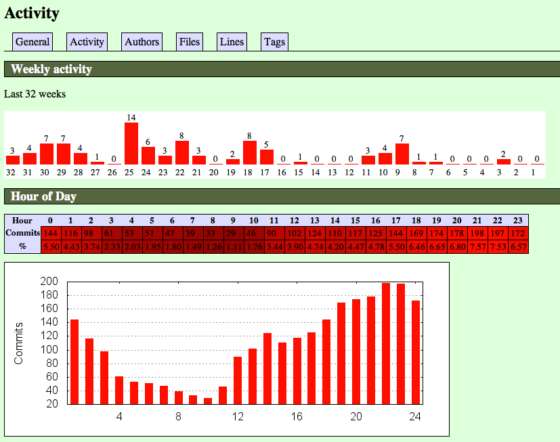
What a great piece of software for my final year project monthly reports! I have found tonight very little, very nice, very easy and most importantly very free tool on the web. It is called StatSVN and for those who don’t know yet what it is because they didn’ read this post title – it’s a subversion reporting tool. It does very easy job converting the log xml retrieved from the subversion server into human readable HTML document. Whoaaaa, I can’t belive sometimes how small things make me happy! Go ahead and try yourself!
Quick, easy and probably unnecessary tutorial on StatSVN:

1. Download the tool itself from sourceforge.net link,
2. Extract the zip file
3. Read the readme.txt :)
4. Check out your sources
5. Run ’svn log –xml -v > svn.log’ inside your project directory
6. Run java -jar statsvn.jar path_to_your_project_folder\svn.log path_to_your_project_folder
7. Wait
8. Go to the folder where statsvn.jar is and launch index.html
9. Feel guilty when you see no commits for a few days in a month :)

The reprots consists mostly of the diagrams and the table stating the developer of the month which I like the most as I’m the only one working on the project :) ))


Simply wonderful!

Starting Up with Erlang

Posted by admin | Posted in Tools | Posted on 23-12-2007

1