This short tutorial describes how to get started easily and quickly with Java EE 6 development. For the purpose of this tutorial you would need to have installed the following tools:
1. Maven 3
2. JBoss AS 6.0
3. Eclipse (I will use Helios release)
4. Eclipse m2eclipse plugin (for managing Maven based projects)
If you have all this tools ready, you can quickly create an maven J2EE archetype provided by JBoss.
1. Open up the Eclipse IDE and select ‘File -> New -> Project’

2. One the next screen just click ‘Next’
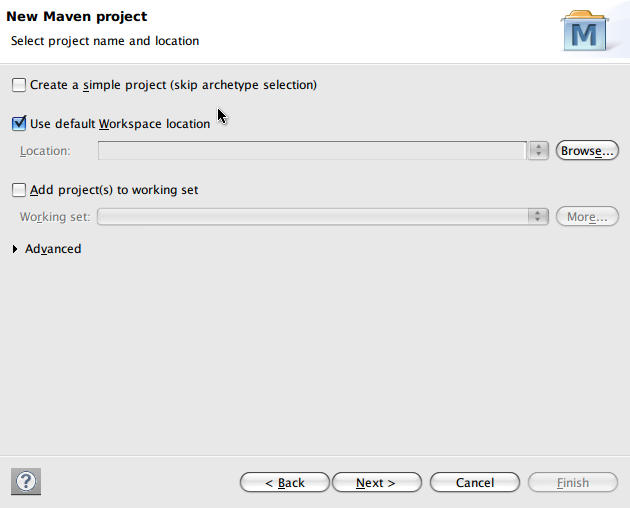
3. One the archetype selection screen, type ‘weld’ in a filter box and select weld.jsf.jee archetype 1.0.0-BETA1

4. Fill up the details for your project

5. Click ‘Finish’
6. Right click on the newly created project and select ‘Run As.. -> Run on Server’ and select Jboss 6.0 server to run your project. If you haven’t configured your jboss server with eclipse you can do it here.

7. Go to the page at: http://localhost:8080/J2EE6Tutorial where J2EE6Tutorial is the name of my project and 8080 is the port I had installed JBoss application server.
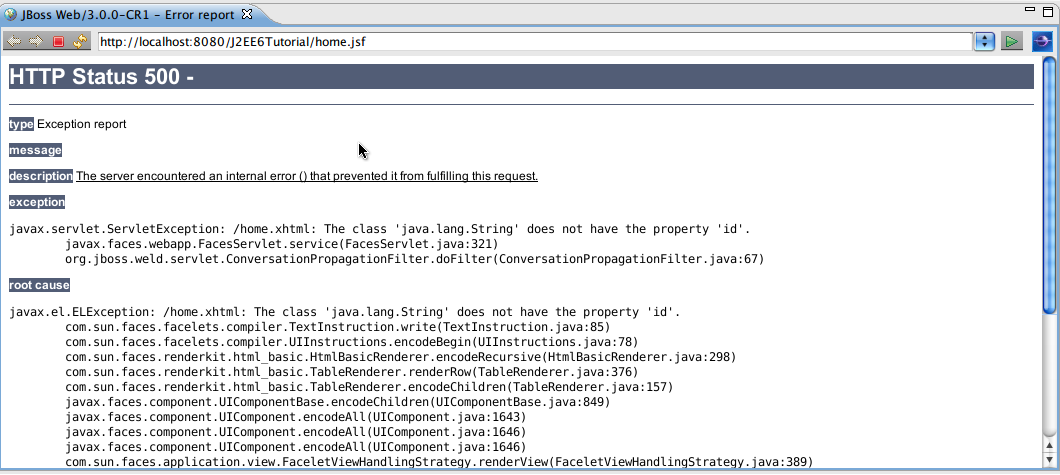
What you will see is probably the error saying:
javax.faces.webapp.FacesServlet.service(FacesServlet.java:321)
org.jboss.weld.servlet.ConversationPropagationFilter.doFilter(ConversationPropagationFilter.java:67)
This is due to the bug in the j2ee weld artifact.
8. To solve the mentioned bug, open up home.xhtml file located in ‘scr/main/webapp/’ folder and change the following line:
to:
9. Redeploy the application on the server. Go to the ‘Servers’ tab, select our application, right click on it, and select ‘Full Publish’.

10. Now you can refresh the application in the browser.
