Android Series: Custom ListView items and adapters
This is a short tutorial on how to populate your android list view, with data downloaded from the internet or other sources, using ArrayAdapter. ListView items view is declared in a separate XML file and displayed using custom adapter class.
First things first, so go ahead and create a new project using Eclipse equipped with ADT plugin.
The project described below assumes you have a list of objects created, this can be either downloaded from the internet as XML and parsed to create ArrayList of your custom objects or anything you imagine. I will not go into details on this tutorial how to create such an ArrayList but your imagination is the limit. Parsing XML downloaded from the net will be covered in the next tutorial coming up soon.
Click File -> New -> Project and select the ‘Android Project’ wizard:
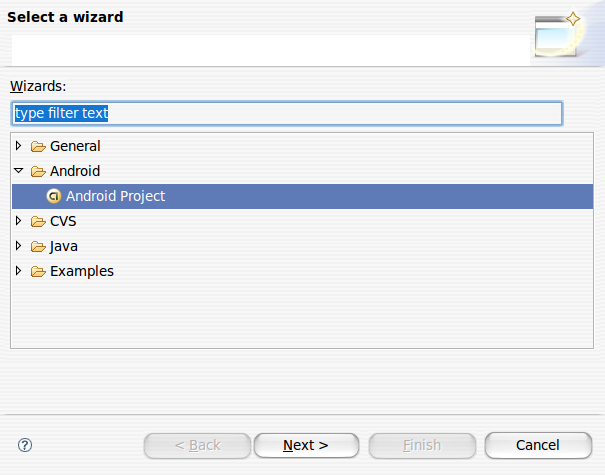
Click next and fill out the next screen with the following values:
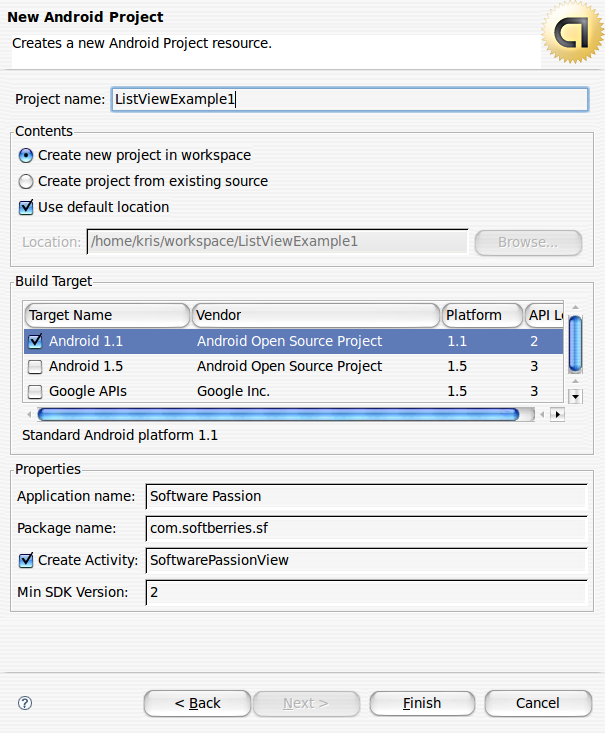
Once you have filled out all the necessary data you can click finish.
Your new project has just been created. Now lets modify it a bit to display our custom made list.
Open up SoftwarePassionView.java in the eclipse editor and change the class file to the following:
1. Define necessary member variables we will use later in our class
private ArrayList<Order> m_orders = null;
private OrderAdapter m_adapter;
private Runnable viewOrders;
m_ProgressDialog is a small pop up displaying information that your data is being downloaded or retrieved other way.
m_orders is an ArrayList which will hold our data downloaded from the internet or acquired other way
m_adapter is our custom class extending ArrayAdapter
viewOrders is a runnable for downloading data from the internet in a separate thread
To import whatever you can at this point click Ctrl+Shift+O, some classes like Order or OrderAdapter are not created yet but don’t worry we will come to that point soon.
Another important note at this point is that your SoftwarePassoinView should extend ListActivity instead of simple Activity.
Your class should look more or less something like this now:
import java.util.ArrayList;
import android.app.ListActivity;
import android.app.ProgressDialog;
import android.os.Bundle;
public class SoftwarePassionView extends ListActivity{
private ProgressDialog m_ProgressDialog = null;
private ArrayList<Order> m_orders = null;
private OrderAdapter m_adapter;
private Runnable viewOrders;
/** Called when the activity is first created. */
@Override
public void onCreate(Bundle savedInstanceState) {
super.onCreate(savedInstanceState);
setContentView(R.layout.main);
}
}
Now lets create our simple Order class holding single order.
Right click on the project and and select ‘New’ -> ‘Class’, name it order and open it up in the editor.
The source code for our orders looks like this:
public class Order {
private String orderName;
private String orderStatus;
public String getOrderName() {
return orderName;
}
public void setOrderName(String orderName) {
this.orderName = orderName;
}
public String getOrderStatus() {
return orderStatus;
}
public void setOrderStatus(String orderStatus) {
this.orderStatus = orderStatus;
}
}
The Order class is very simple and contains only 2 strings with getters and setter generated for them
Now lets change our main.xml file to hold our custom list items:
<LinearLayout xmlns:android="http://schemas.android.com/apk/res/android"
android:orientation="vertical"
android:layout_width="fill_parent"
android:layout_height="fill_parent"
>
<ListView
android:id="@+id/android:list"
android:layout_width="fill_parent"
android:layout_height="fill_parent"
/>
<TextView
android:id="@+id/android:empty"
android:layout_width="fill_parent"
android:layout_height="fill_parent"
android:text="@string/main_no_items"/>
</LinearLayout>
This layout will display our list items if any and if the list is empty it will display ‘No orders to display’ string defined in string.xml resource file.
<resources>
<string name="hello">Hello World, SoftwarePassionView!</string>
<string name="app_name">Software Passion</string>
<string name="main_no_items">No orders to display</string>
</resources>
Our list item (single row on the list) have a custom layout as well, defined in row.xml file:
<LinearLayout xmlns:android="http://schemas.android.com/apk/res/android"
android:layout_width="fill_parent"
android:layout_height="?android:attr/listPreferredItemHeight"
android:padding="6dip">
<ImageView
android:id="@+id/icon"
android:layout_width="wrap_content"
android:layout_height="fill_parent"
android:layout_marginRight="6dip"
android:src="@drawable/icon" />
<LinearLayout
android:orientation="vertical"
android:layout_width="0dip"
android:layout_weight="1"
android:layout_height="fill_parent">
<TextView
android:id="@+id/toptext"
android:layout_width="fill_parent"
android:layout_height="0dip"
android:layout_weight="1"
android:gravity="center_vertical"
/>
<TextView
android:layout_width="fill_parent"
android:layout_height="0dip"
android:layout_weight="1"
android:id="@+id/bottomtext"
android:singleLine="true"
android:ellipsize="marquee"
/>
</LinearLayout>
</LinearLayout>
Single row example has been borrowed from the romain Guy website here
Ok, so we have all our layouts defined in the res folder under layout. Now its time to go back to our code and create our custom OrderAdapter class which will manage our list of orders:
private ArrayList<Order> items;
public OrderAdapter(Context context, int textViewResourceId, ArrayList<Order> items) {
super(context, textViewResourceId, items);
this.items = items;
}
@Override
public View getView(int position, View convertView, ViewGroup parent) {
View v = convertView;
if (v == null) {
LayoutInflater vi = (LayoutInflater)getSystemService(Context.LAYOUT_INFLATER_SERVICE);
v = vi.inflate(R.layout.row, null);
}
Order o = items.get(position);
if (o != null) {
TextView tt = (TextView) v.findViewById(R.id.toptext);
TextView bt = (TextView) v.findViewById(R.id.bottomtext);
if (tt != null) {
tt.setText("Name: "+o.getOrderName()); }
if(bt != null){
bt.setText("Status: "+ o.getOrderStatus());
}
}
return v;
}
}
This is a private class and should be added to our SoftwarePassionView. This is extended ListAdapter which inside overriden getView method returns our row with assigned string values to the textfields defined in row.xml.
A huge part of our application is already done. Now we have to add some modifications to the onCreate method to initialize everything properly and add a method retrieving our orders from somewhere, lets start with the latter:
try{
m_orders = new ArrayList<Order>();
Order o1 = new Order();
o1.setOrderName("SF services");
o1.setOrderStatus("Pending");
Order o2 = new Order();
o2.setOrderName("SF Advertisement");
o2.setOrderStatus("Completed");
m_orders.add(o1);
m_orders.add(o2);
Thread.sleep(2000);
Log.i("ARRAY", ""+ m_orders.size());
} catch (Exception e) {
Log.e("BACKGROUND_PROC", e.getMessage());
}
runOnUiThread(returnRes);
}
Instead of creating our simple orders in the method above you could of course download them from somewhere and assign the result to the m_orders array list. The method runOnUIThread is a utility method for running tasks back on the main UI thread after the job is done on the separate thread created for long running tasks. We will call our getOrders method from a separate thread.
The returnRes runnable adds newly retrieved Order object to our custom Adapter and notifies it of the data change:
@Override
public void run() {
if(m_orders != null && m_orders.size() > 0){
m_adapter.notifyDataSetChanged();
for(int i=0;i<m_orders.size();i++)
m_adapter.add(m_orders.get(i));
}
m_ProgressDialog.dismiss();
m_adapter.notifyDataSetChanged();
}
};
Now lets move to our overriden onCreate method. We will initialize here all the member variables as well as start a new thread retrieving our orders:
public void onCreate(Bundle savedInstanceState) {
super.onCreate(savedInstanceState);
setContentView(R.layout.main);
m_orders = new ArrayList<Order>();
this.m_adapter = new OrderAdapter(this, R.layout.row, m_orders);
setListAdapter(this.m_adapter);
viewOrders = new Runnable(){
@Override
public void run() {
getOrders();
}
};
Thread thread = new Thread(null, viewOrders, "MagentoBackground");
thread.start();
m_ProgressDialog = ProgressDialog.show(SoftwarePassionView.this,
"Please wait...", "Retrieving data ...", true);
}
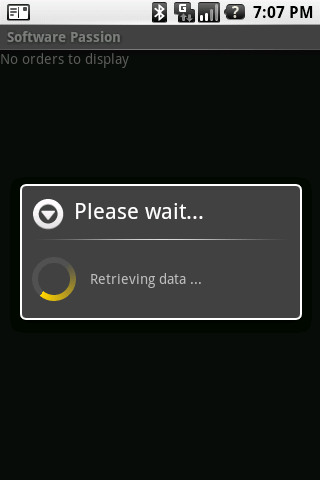
After initialization, we start new thread using the viewOrders runnable and show the progress dialog which we close once the orders are retrieved.
Now you should be able to run your application. After the application starts it spawns new thread and displays the loader:
 |
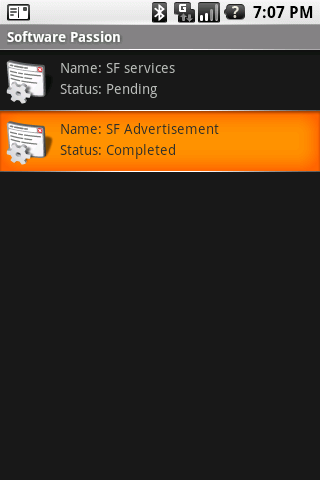 |
And thats it. You can add an Item Click Listener to your list to start new activities etc.
Full source code for the SoftwarePassionView below:
import java.util.ArrayList;
import android.app.ListActivity;
import android.app.ProgressDialog;
import android.content.Context;
import android.os.Bundle;
import android.util.Log;
import android.view.LayoutInflater;
import android.view.View;
import android.view.ViewGroup;
import android.widget.ArrayAdapter;
import android.widget.TextView;
public class SoftwarePassionView extends ListActivity{
private ProgressDialog m_ProgressDialog = null;
private ArrayList<Order> m_orders = null;
private OrderAdapter m_adapter;
private Runnable viewOrders;
@Override
public void onCreate(Bundle savedInstanceState) {
super.onCreate(savedInstanceState);
setContentView(R.layout.main);
m_orders = new ArrayList<Order>();
this.m_adapter = new OrderAdapter(this, R.layout.row, m_orders);
setListAdapter(this.m_adapter);
viewOrders = new Runnable(){
@Override
public void run() {
getOrders();
}
};
Thread thread = new Thread(null, viewOrders, "MagentoBackground");
thread.start();
m_ProgressDialog = ProgressDialog.show(SoftwarePassionView.this,
"Please wait...", "Retrieving data ...", true);
}
private Runnable returnRes = new Runnable() {
@Override
public void run() {
if(m_orders != null && m_orders.size() > 0){
m_adapter.notifyDataSetChanged();
for(int i=0;i<m_orders.size();i++)
m_adapter.add(m_orders.get(i));
}
m_ProgressDialog.dismiss();
m_adapter.notifyDataSetChanged();
}
};
private void getOrders(){
try{
m_orders = new ArrayList<Order>();
Order o1 = new Order();
o1.setOrderName("SF services");
o1.setOrderStatus("Pending");
Order o2 = new Order();
o2.setOrderName("SF Advertisement");
o2.setOrderStatus("Completed");
m_orders.add(o1);
m_orders.add(o2);
Thread.sleep(5000);
Log.i("ARRAY", ""+ m_orders.size());
} catch (Exception e) {
Log.e("BACKGROUND_PROC", e.getMessage());
}
runOnUiThread(returnRes);
}
private class OrderAdapter extends ArrayAdapter<Order> {
private ArrayList<Order> items;
public OrderAdapter(Context context, int textViewResourceId, ArrayList<Order> items) {
super(context, textViewResourceId, items);
this.items = items;
}
@Override
public View getView(int position, View convertView, ViewGroup parent) {
View v = convertView;
if (v == null) {
LayoutInflater vi = (LayoutInflater)getSystemService(Context.LAYOUT_INFLATER_SERVICE);
v = vi.inflate(R.layout.row, null);
}
Order o = items.get(position);
if (o != null) {
TextView tt = (TextView) v.findViewById(R.id.toptext);
TextView bt = (TextView) v.findViewById(R.id.bottomtext);
if (tt != null) {
tt.setText("Name: "+o.getOrderName()); }
if(bt != null){
bt.setText("Status: "+ o.getOrderStatus());
}
}
return v;
}
}
}
Enjoy!
Great tutorial !
I think this is the first tutorial for ListViews, that acutally works and comes straight to the point.
Thanks 🙂
Great!
But I have a doubt… I dont’t understand why it is necessary to add items to the arrayAdapter if those items have allready been added to the array which is linked to. Which is the sense of the arrayAdapter then? Can anybody shed light on these lines?
m_adapter.notifyDataSetChanged(); //why is it done before updating it?
for(int i=0;i<m_orders.size();i++)
m_adapter.add(m_orders.get(i));
Thanks in advance!
Yours,
Charl!e
True, I tried that this way as well, but aparently adding items to the ArrayList connected with the adpater and calling notifyDataSetChanged() doesn’t work. ArrayAdapter has its own method add().
Thank you for this tutorial. It was very well written, and it was easily adaptable for other projects. Good job.
Dan
Where in the code would you add the listener so that you could perform some action once an item on the list has been selected?
Thanks
You have to override onItemClick method to handle list items selection
Very great Tutorial!
My Question:
I have some TabHosts with ListViews in my layout xml.
For this (i think!?) i must extend Activity and not ListActivity in my main activity for this view.
Is this a Problem?
What kind of changes i have to do? (ListActivity to Activity )
Thanks
Esta buenísimo, muchas gracias…!
Hi. It’s a great tutorial but there is one thing i didn’t understand.
It seems to me that the the textview you are displaying when there are no elements automatically dissapears when there are some elements.
I don’t understand.
I call setVisibility(View.GONE) on my textbox once i have the list elements.
hope you can explain.
Hi,
I used this tutorial to show custom list view. This works fine.
Except focus is not seen on listItem. Even I clicked D-pad up,down keys focus its not showing focus. Do I need any extra things to use focus?
check out for better performance…. it’s just a general example
public View getView(int position, View convertView, ViewGroup parent) {
ViewHolder holder;
if(convertView == null) {
convertView = mInflater.inflate(R.layout.item, null);
holder = new ViewHolder();
holder.text = (TextView) convertView.findViewById(R.id.text);
holder.icon = (ImageView) convertView.findViewById(R.id.icon);
convertView.setTag(holder);
}
holder.test.setText(DATA[position]);
holder.icon.setImageBitmap((position & 1) == 1 ? mIcon1 : mIcon2);
return convertView;
}
This is exactly the kind of tutorial I’ve been searching for nonstop for days now. Thank you!
Man, you’ve just made my day with this tutorial. Excellent.
Thanks a lot.
thx, you save me!
Can you please let me know how to get the selected item in the list for the above example?
Great tutorial..thanks!!!
First of all thanks for the great tutorial!! I got this running, though I had to add Looper.prepare() to the viewOrders run() method… Like many others I am a little confused on how to take this view (is it a view or activity??) and add it to a tab. My application uses 5 tabs that load data from 5 different sources, but displays them all in a list view… Any help would be fantastic!
Excellent tutorial. Thank you
Thank you very much for this excellent tut!
Very nice tutorial. Thank you.
Would be nice to see a similar one explaining ExpandableLists the same straight way.
Thanks alot for the tutorial
Thanks for this code, it is nice code to implement in program. But can you provide the code to click on listView, we edit on that list
Thanks so much for this! Great explanation of ListView.
Thanks Dude!
hey its too great tut…
thanx dude…
well m having one problem same as andy problem
what changes i have to made if my class extending activity class not list activity…
My layout contents other element too…so i cannt extend ListActivity..
Can any one help me…?
thanx in advance
Hey,,its excellent
But I wanna create tabs at the bottom of the screen,,how to do that,,,Is it possible?,,,
Thanks,,
Well,
I have had no luck with getting a custom ListView to work.
This tutorial runs, but all I see is “No orders to display”.
Is this really working for anyone else? Did you have to make some tweaks?
joe
Hello Joe,
you would have to provide more details what exactly is happening, simply saying what you can see on the screen doesn’t help me to help you. Try to debug your app and if you still have a problem let me know.
Not sure, I will have a look at the weekend at this tutorial again, if I’ll find something I’ll let you know.
Thanks for great tutorial!
Little improvement IHO:
Inside OrderAdapter,
It doesn’t seem to be necessary to have this object variable
private ArrayList items;
as it should be available in the parent class.
And use
getItem(position) ( or super.getItem(position))
instead of
items.get(..)
wow it works perfrect! thank you!
Combined this with a webservices (ksoap) and it works perfectly. Also nice details of the ProgressDialog. SWEET 🙂
Thank you.
Hello,
I see lots of comments about how this could be sleaker. Has anyone got a working example?? Specifically about the items.get part.
Cheers
I try to run this but after the retrieving dialog box runs it shuts down and displays that it has shut down unexpectedly. Do you know what may be the cause of this? I am running on google api 1.5 sdk 2.
Try to debug it, at least by placing the Log(“”,””) statements in your code. Otherwise I won’t be able to help you.
Thanks for great tutorial!
I tried running this application..
Although the icons loaded the text was nowhere to be seen. And the vertical space for each item is very wide. Did I forget to set something?
hmnn, interesting. Please double check your layout xml files and the string variables they contain.
Hi, Great tutorial.
But i am having problems with this line
for(int i = 0; i < data2.size(); i++){
rAdapter.add(data2.get(i));
}
(i changed the variable names)
Basically it loops forever. the arraylist seems to increase in size and keeps going
thats pretty basic, please double check you code or try to use debugger.
Well i scratched my head for a while and removed that code. this works perfectly without the loop
private Runnable returnData = new Runnable(){
@Override
public void run() {
if(listViewData != null && listViewData.size() > 0){
rAdapter.notifyDataSetChanged();
}
rProgressDialog.dismiss();
rAdapter.notifyDataSetChanged();
}
};
In your example how would you refresh the list view?
HI, great tutorial! Thanks… can you post a .RAR or .ZIP with the complete project to know exaclty where to put each part off the code?
Thanks again!!
Hi Daniel,
I encountered the same “infinite for loop” problem with you where the arraylist seemed to increase in size.
under my equivalent of “getOrders()” i made a http connection, received an xml response and parsed it into an arraylist of objects.
i followed your fix and removed the loop. seems to work fine, and the listview displays all the correct items, but i was wondering if there are any drawbacks to this.
any updates?
thanks
Shaun
Hi
the tutorials is gr8, it works absolutely fine.
But can someone tell me how to add filter to this
what i mean is:
[if i write A in a testbox all the names starting with A should come up]
i need this very urgently so plz….
Thanks in adv
sorry Pablo, don’t have the sources any more.
Great…. you goth my respect dude…
Hi,
this was very useful for me. However I think it is strange that you have to add each item and copy them from one list to the other, as mentioned above. Does anybody have a solution to this problem?
Regards
Johan
Many thanks, It’s helpful
Great tutorial.
Did you ever get around to doing a tutorial on a more-robust getOrders() method? Maybe one that reads from XML or pulls via http?
That would be awesome if you did.
well, look at my other posts about parsing JSON data and executing POST/GET requests, combine them togheter and you will get an answer 🙂
Two notes on this.
1. getSystemService(…) does not exist in ArrayAdapter. You need to change it to (LayoutInflater)getContext().getSystemService(…
2. It is not necessary to create a new list in copy all of those items into a new list in your getOrders function, nor do you need to have the loop in your returnRes function. You’ve already passed the m_orders list into the ArrayAdapter (by reference), so when you notify the adapter that the list has changed, it is able to access the list you just added stuff to.
Thanks for the code…it really helped me to get started. I am new to both Java and Android…started doing some Silverlight DEV 6 months a go.
Question on a piece of your code. What exactly does this do? I am still trying to understand how the structure of android views work.
Thanks
View v = convertView;
if (v == null) {
LayoutInflater vi = (LayoutInflater)getSystemService(Context.LAYOUT_INFLATER_SERVICE);
v = vi.inflate(R.layout.row, null);
}
Have a look here: http://developer.android.com/reference/android/view/LayoutInflater.html
I can understand how the code works more or less. but i have a question about getView() method. I got a book showing something like your code, it’s just that it doesn’t explain well when the convertView might have null or non-null value. Plus I don’t get when this method is called. I break-pointed on this method with 3 elements in a normal array string and saw that this method was called 6 times, with convertView shifting from non-null to null value on every call. thanks for the help in advance!!!
Hey! Thank you for this very helpfull code snip. My question is now: How can i get the TextView Views out of the Listview over a onItemCLickListener….. im not able to do this.. please help me!.. i need the text view because i have to change the textstyle in the textview (which is in our listview) after clicking on it..
I am a beginner in Java and Android
I put OrderAdapter to a separate file and I get this:
Illegal modifier for the class OrderAdapter; only public, abstract & final are permitted
What should I do?
It had to be changed to public as I want to use it from a different class.
Hi. I am struggeling with
LayoutInflater vi = (LayoutInflater)getSystemService(Context.LAYOUT_INFLATER_SERVICE);
Eclipse always tells me: method getSystemService(String) is undefinied for type OrderAdapter
What am I doing wrong?
Hallo.
I want to put a RadioGroup, which has 4 RadioButtons as Children, in each Row.
Now i can click on the RadioButtons with no Problem, but if i scroll the ListView, my selection is gone. I habe tried several days, but still i can not fix the problem.
Can anybody help?
I’m struggling to grasp where and how exactly I can attach an onItemClickListener. Is it to the adapter (m_adapter) and if so at which point? Does the update/runnable affect this too?
Great article by the way.
Hello, my application still has errors though the code doesn’t show any. It says that my application has stopped unexpectedly. Please help me out!
I’m a super beginner in android and your code really helps me out!
THANKS. You can email me too.
Can you continue using this code, whereby its clickable and goes to another page?
To add onItemClickListener:
1) Add this:
private OnItemClickListener listlistener = new OnItemClickListener() {
@Override
public void onItemClick(AdapterView parent, View arg1, int position,
long arg3) {
Toast.makeText(getApplicationContext(), “You have clicked on ” + ((Order)parent.getItemAtPosition(position)).getOrderName(), Toast.LENGTH_SHORT).show();
}
};
2) Then add this to the OnCreate after setContentView:
getListView().setOnItemClickListener(listlistener);
Can you continue using this code, whereby its clickable and goes to another page?
or read the data from website and show in listView ?
Great post !
But how and where do you say to the progress dialog to shutdown ?
Thanks man!
Just wanted to say that your tutorial was GREAT 🙂 it helped me alot with my android project.
So THANKS! 🙂
Brgds Robert
it is possibile to show a different icon for different type of item in list? thanks
Hey Anon, what you mean by Step 2?
2) Then add this to the OnCreate after setContentView:
getListView().setOnItemClickListener(listlistener);
Omg thanks for the OnItemClick code Anon. But it doesn’t work! 🙁 HELP! Can’t toast didn’t appear!!!! 🙁
If i dont want to use the hard code for the data. I wanna take it out from my data base.
does this means i need nt the order class? and the arraylist?
Is it possible to get data from my database and set the text as from my data? so does this means I do not need the Order class? and the adapters?
Hi there! Your code works fine already and the onclicklistener too! :>
But now I’m kinda stuck, hope you guys help me out!!!!
I want everything above, the progress dialog and the listview. However, I wanna use my own data from my database. Help anyone? Cause I can’t solve this problem.
Is it possible to show another list in a list item ?
Hi, I’m having a trouble with this, how can i put data in 2 different listview? When i try to implement this, my listview content is exactly the same, and before i add new data i declare new adapter, and the result is both listview contains the same data which is combination of data from each listview. Thanks for your help, i really appreciate it a lot.
Hi,
Nice article.
How can i set single choice mode for custom listview ?.
This is a great tutorial. At first i was a bit taken that there was soo much code, but once i read through it and implemented it, it works great. Thanks so much for the help.
Admin : thanks a ton for this……successfully implemented the same functionality to my project……Kudos to u
Jyahao : What is the Error?
Inside the adapter use custom views.
If u use custom view with x items inside like textviews image views and many other view object u culd replace this 2 calls to findviewbyid to just one call to get the custom view by id and then refer to the n itmes in the custom view.
So instead n calls you just need one call.
TextView tt = (TextView) v.findViewById(R.id.toptext);
TextView bt = (TextView) v.findViewById(R.id.bottomtext);
I tried the exact same code, without any changes and it didn’t work.
What could be the possible problem? The screen after the ProgressDialog (in the background show empty text) shows a empty screen?!…
Now log for error. Any idea? I tried removing the thread and doing all process in same thread, still no result?
Excellent sample to get folks new to Android started. The ListView is one of those things that you would use again and again. Great service! Thanks!
thanks for the helpful walkthrough!!
Just what I needed! Thanks.
But, please, repair the code where getSystemService() call.
Hi,
i want to display admob or tab in the button of this custum listview ,i tried but not got any success,any help for displaying admob.
Great tutorial!! I’m trying to adapter this to a Spinner widget and when I try to select the spinner, i get “java.lang.IllegalStateException: ArrayAdapter requires the resource ID to be a TextView”. The resource ID I’m using is R.layout.row (the same as the tutorial). The XML says it’s parent node is a LinearLayout so maybe that’s my problem? If so, I’m stumped because I was hoping to control positions with LinearLayout. If anyone has got this working I’d appreciate any input. 🙂
This got me the rest of the way implementing this with a spinner 🙂 …
http://stackoverflow.com/questions/3072147/how-to-correctly-overwrite-methods-of-spinneradapter
Please help me on this, I want have listview of short sentences in my app. These sentences are stored in a xyz.xml resource file as string array items. What confuses me is the layout xml file. Everywhere I read some tutorials have both ListView and TextView tags and some have one of them. So I am not sure why they use either one. Also, how to use ArrayAdapter to place the sentences into the listview.
Please help, I just started this journey.
Thank you very much.. Exactly what I was looking for..
Like this!
Thanks for great tutorial.
Excellent tutorial! Can you follow up with a part-2 on how to implement the Item Click Listener?
In getOrders I wanted to grab data from a db and found creating new Order objects redundant o1, 02 so I modified the code to be:
Order o1 = new Order();
for(…)
o1.setOrderName(“[name from db]”);
o1.setOrderStatus(“[status from db]”);
m_orders.add(o1);
o1 = new Order();
} //for
I was surprised that o1 had to have the “new Order()” but I guess it gets saved by reference of some sort. Without it all items have the value of the last item in the database.
that’s great!!
thank a lot..
I browsed it , but now I will practise it.
Good example…easy to follow…saved me trying to figure it out. Thanks!
Thanks for a good code.
thanks alot, ur row xml was my first of my custom list.
everythings r fine, but now i have added a button in the list but the listener is not at al listening to the clicks. wher m i going wrong, is there nything that i need to do..
thanks.
Perfect. Nicely broken down into the working code bits and associated documentation / discussion.
Excellent tutorial! This worked great, along with the click events. All I needed to do after this was figure out how to use a selector (to highlight selected list items), and I made huge strides in my understanding of Android.
thanks!
Thanks!
This was *exactly* what I was looking for my LifeMapper and ProjectMappr applications.
Brett Kromkamp
How to access “No orders to display” through code? I only want to display this label, after downloading the model data.
You made that list in 2008 with API 0.9, are there better options now? Maybe a nativ solution?
Hello,
That was a very useful example, but i want to make something more advanced.
I want to make it dynamic. I want to produce a Custom Listview with such item as i get from a Sax Xml Parsing using this example:
http://www.anddev.org/novice-tutorials-f8/parsing-xml-from-the-net-using-the-saxparser-t353.html
Being an inexperienced android and java developer, any help and tip could be useful!! 🙂
Hi, thanks for the tutorial it was really helpful to me, but please correct the code.
in getOrders(), m_orders = new ArrayList(); is wrong and in run() only those two lines are necessary:
m_ProgressDialog.dismiss();
m_adapter.notifyDataSetChanged();
http://mfarhan133.wordpress.com/2010/10/14/list-view-tutorial-for-android/
see this blog, it will help you how perform action on list items
Why do you need to init with a “new” the ArrayList member in getOrders ? It’s already initialized entering the onCreate.
Deleting one or the other of those inits make the app crash. I don’t understand why…
Your codes work! Thanks a lot.
Hi, thanks for the post, nice tutorial. I am having some problem with my android application. I am trying to pass an object array to ListActivity to create a listview . My array object contains (int key, String value).
What i need is to some how modify listAdapter to show the key and values for that passed arrayObject. Can someone help me on that. Thanks
Great code, thank you very , just what I was looking for.
Thanks for the example. Complete and to the point.
Hi Krzysztof Grajek
Good tutorial.
I want layout of listview like call log listview in emulator of android. i.e with call details and icons for incoming call,outgoing call,missed call and with icon of call. please tell me how to compate the two events : 1) calling when clicking on call icon
2) displaying call detail information when clicking on list item.
Thanks & Regards
Kapil
Hi, thank you for your tutorial.
I am currently going through, 2 things have popped up:
1) I had to add
private Context ctx;
this.ctx = context;
to the OrderAdapter to get the line
LayoutInflater vi = (LayoutInflater)ctx.getSystemService(Context.LAYOUT_INFLATER_SERVICE);
to work.
2)
On public class OrderAdapter extends ArrayAdapter{
I get an error “The public type OrderAdapter must be defined in its own file. Only final, static or abstract may be used”. Am I missing something or has something changed since when you wrote this?
Thanks!
This has got to be the sexist posting on the internet. Thank you.
Can you please publish a tutorial on creating a custom list view with images defines from a cursor. I hate tutorials that pull back a set list of items from an array. When would I ever user this code
Nice example, but the “m_orders” ArrayList is written in a background thread and read in the Main UI thread so all accesses need to be synchronized.
It would be better to create a new, local ArrayList in the background thread, fill it with data, and then pass it to the main UI thread as an argument. Then you don’t need any synchronization.
Well written and useful tutorial. Thanks.
Truly awesome! Thanks a lot for clarifying this messy jungle of views, arrays, adapters and alike 🙂
I honestly didn’t expect that using this tutorial – and making adaptions on the go 😉 – would work straight away, especially when done at 3AM without any coffee in my bloodstream.
Thanks for the code, it’s awesome! It helped me so much!
The list scrolled VERY slowly though. I fixed this performance issue simply by removing the [android:ellipsize=”marquee”] line from row.xml. I’m not even sure what that does, and it doesn’t seem to matter for this example.
Lol @ Ctrl+Shit+O
Awesome tutorial..
thanks…
Thank you very much. Nice writeup.
Hi, nice tutorial. I am currently trying to add an onclick listener but I can’t seem to figure it out.
somehow this doesn’t work: ListView lv = (ListView)findViewById(R.id.list);
Sorry for being such a noob. But extending the tutorial with a click listener would help me out big time. thanks in advanced! Best regards, JP
The best ListView and Adapter example I have ever found !!! Many thanks.
Very nice tutorial!
i have a question… is there a way to make the items returned by the listview be displayed horizontally?
Best regards.
Don’t know if anyone can reply but I have a strange problem with layout – I have changed the ‘row’ layout to Relative and want to place some images. However when I select layout_alignParentBottom=”true” it looks good in the eclipse ‘layout preview’ but on the device it’s almost at the top of the row. Why is that?
PS: aligning to parent top,left,right works perfectly…
Could you provide a screenshot of what you are trying to achieve?
Great, working perfectly after few modifications. using this now in one of my projects.
I don’t think a screen shot is necessary – in general the ‘vertical’ parameters of RelativeLayout seem to be not working in a list item. When I pick alignParentBottom, or centerVertical the images just ignore it. I have seen an google I/O with Romain Guy and he answered a similar question by saying we should pass the parent ViewGroup followed by false, to the inflate function, but that still doesn’t solve my problem. Don’t know what is going on here. I solved this by placing my items below some others and playing with the margin/padding but I don’t really like that solution.
I found your pictures could not be retrieved, e.g. , android11, http://www.softwarepassion.com/wp-content/uploads/android11.png, is not available. Please check.
Thanks,
Excellent tutorial, thanks!
Thanks as this was a very illustrative example.
Hi
I have used this code its working really well.
But i want reload my listview in on resume too.
But its giving error.
This is AWESOME example. I was struggling to get simple list to show in a new activity with custom view for almost 3 days.
I am 2 weeks newbie to Android framework and this example worked like a charm. Now I have to pour over the lines to understand all this.
Great example. Thanks!
I got exception on this
Nice tutorial, thank you very much.
How could i use click handlers in this situation? For example add a text page when i click a row?
Thank you in advantage.
awesome. thanks.
I noticed the author had no comments on @Jack Veenstra’s comments about the threads and synchronisation. Would anyone care to comment? This is kind of important to me at this stage of my implementation.
Great tutorial – I had been trying various tutorials to try and get my head around ListViews and custom adapters, without any real success.
Then I found this one and was up and running within 1/2 hour. Brilliant!
Thanks. This is a great tutorial. Very helpful.
Excellent Tutorial. Thanks.
Noo! Please do not post such misleading concepts! Never ever modify UI elements from another thread! It is strictly prohibited! Please read at least the basics before start posting on a topic!
Really nice tutorial!!
Hi! really good tutorial!Very Helpful
Is there any chance of updating it using auto-complete for as newbies!
Thanks a lot! Works great, simple to understand.
Thanks a lot it helped me exactly the way I wanted. Had before dealt with custom ArrayAdapter but had problems with custom objects array instead of just strings array.
Thanks – finally a decent tutorial
I get an error on the line:
LayoutInflater vi = (LayoutInflater)getSystemService(Context.LAYOUT_INFLATER_SERVICE);
I saw the Android API and the getSystemService is part of the Context Object.
Should I use the same context that is specified in the constructor?
I’m using Android 2.2
Thanks
awsome tutorial ! helped me out a lot!
Great article. Thanks.
When I run this in the emulator and switch between landscape and portrait modes a couple of times, the example throws the following exception:
Thread [ main] (Suspended (exception IllegalArgumentException))
WindowManagerImpl.removeView(View) line: 208
Window$LocalWindowManager.removeView(View) line: 432
ProgressDialog(Dialog).dismissDialog() line: 280
Dialog.access$000(Dialog) line: 73
Dialog$1.run() line: 109
ProgressDialog(Dialog).dismiss() line: 264
MyActivity$1.run() line: 76
And ideas?
Thanks
Harry
ABOVE IS SOLVED
You have to add this to the activity declaration in the manifest:
android:configChanges=”orientation”
So putting that in the configuration file avoids the system destroying your activity. Instead it invokes the onConfigurationChanged(Configuration) method.
http://stackoverflow.com/questions/1111980/how-to-handle-screen-orientation-change-when-progress-dialog-and-background-threa
Great tutorial!
I’m getting the following runtime error:
Your content must have a ListView whose id attribute is ‘android.R.id.list’
My main layout has a ListView that looks like this:
Any ideas? Thanks!
Thank you very much for your post. This is exactly what I’m looking for.
Dat
good work, thats really helpful..
Thank you very much, this was just the example I was looking for.
can u send me the project file???
This was a perfect, wonderful tutorial. Thank you so much
actually the way you handle the backing list in the adapter is a little sloppy. you don’t need to declare your own list in the adapter class, you can just use the one provided by the arrayadapter
Brilliant post, thank you.
I found the following link fixed the issue with getSystemService.
http://stackoverflow.com/questions/4321343/android-getsystemservice-inside-custom-arrayadapter
Great tutorial.
A couple of suggestions for the getView() method in the OrderAdapter class.
1. For me the line:
LayoutInflater vi = (LayoutInflater)getSystemService(Context.LAYOUT_INFLATER_SERVICE);
did not work.
getSystemService() is obviously not a method of OrderAdapter. It is a method that can be provided by the Context class. In the context of an ArrayAdapter class (which is the base class for our OrderAdapter class) you can access the current context using the getContext() method. Thus, the thing that worked for me is:
LayoutInflater vi = (LayoutInflater) getContext().getSystemService(Context.LAYOUT_INFLATER_SERVICE);
2. The getView() method can be optimized. The inflating, text setting and all that processing needs to take place ONLY when the view is constructed for the first time. In other words only when the convertView parameter is null. All the other times, you just need to return the convertView as it is.
The convertView parameter acts both as an input parameter (when its initial value is null) or as an output parameter (when its initial value is something else other than null). Below is the way I re-wrote this method.
@Override
public View getView(int position, View convertView, ViewGroup parent) {
View v = convertView;
if (v != null) {
LOG.d(“OrderAdapter#getview()”, “No need to do anything…”);
return v;
}
LOG.d(“OrderAdapter#getview()”, “Inflate the layout and properly set the view’s controls…”);
LayoutInflater vi = (LayoutInflater)getSystemService(Context.LAYOUT_INFLATER_SERVICE);
v = vi.inflate(R.layout.row, null);
Order o = items.get(position);
if (o != null) {
TextView tt = (TextView) v.findViewById(R.id.toptext);
TextView bt = (TextView) v.findViewById(R.id.bottomtext);
if (tt != null) {
tt.setText(“Name: “+o.getOrderName()); }
if(bt != null){
bt.setText(“Status: “+ o.getOrderStatus());
}
}
return v;
}
This can lead to some significant optimization (especially when the list gets long enough) because the number of times when this parameter is different than null is far greater that the number of situations when it is null. I have added a couple of debug log statements to illustrate this.
This is a great post, exactly what i was looking for. I had a problem with my XML setup, but was quickly resolved. There should be more tutorials like this out there!
Awesome man!
Great example for Threading and Cool lists 😉
Thanks!
Can you send me the project file please?
Thanks in advance.
Hi, I modified this tutorial to have a dialog that you input data. The only problem is the view is never refreshed despite putting notifyDataSetChanged(); after I add my object (you use an Order object in the tutorial). After the dialog I create a new intent and when I click back the new data isn’t there. It only comes about when the onCreate method is called. I also tried putting the thread call after I add my data but that created duplicate entries. Any ideas? Thanks
Thank you! Excellent tutorial.
@ Krzysztof: Really great tutorial. There is so much unreadable and crappy blog post regarding this out, but your’s is awesome. Thanks for it.
@ AF: I can’t second any of your comment. The original source (if not changed so far) works fine (concerning Context). And your changes concerning convertview are simply wrong: Indeed, you can use convertview, but in this case you have to update the view with the information kept in place in your items list for the given position. Otherwise you just replicate old content in your list. So the “return v” once you’ve found a convertview is wrong. You may use convertview, of course, but you have to update it with the most recent values. Same as with the iPhone table view.
Thanks a lot!! Exactly what i needed… now accessing a webservice for the list items would be awesome! 🙂
I do believe that same as Zerga, Thank you!!
Hi,
since converting my simple textual listView to something like your version above (text and image), I have lost the ability to keyboard search for elements in the listView.
Do you know if it’s possible to search a ListView when each element is actually a View in an Adapter class?
Thanks
Iain
I took the help of this tutorial. everything works fins but I am not able to use ItemClickListener. If I click on any item in list then nothing happens. I tried it with below given code:
MyAdapter adapter = new MyAdapter(this, R.layout.row, list);
lv.setAdapter(adapter);
lv.setOnItemClickListener(new OnItemClickListener() {
public void onItemClick( AdapterView parent, View view, int position, long id) {
Log.i(“MYTAGGGGGGGGGGGGG”, “INSIDE ITEM CLICK LISTENER”);
});
android:id=”@+id/icon”
Can anyone tell me where i could get the image for the icon? Any link?
Great! Thanks a lot!
I want to do Item click on list view item.
So can i know how to do here & where to write? that is under OrderAdapter class or SoftwarePassionView ListActivity?
please reply me as soon as possible
This is the best tutorial I’ve seen for a custom listview
After hours of bashing my head against it, I realized that you can’t use the convertView if some elements of the list have different layouts and the list is large enough to require scrolling. I think the convertView passed when getView is called during a scroll is actually the one at the opposite end of the screen (say the view at the top if scrolling downward), and the result is that if those two views are of a different layout, the new one gets switched to the layout of the convertView. Anyway, I said to hell with the optimization and just inflated the view every time after spending too much time working out a more efficient solution. I hope this helps anyone else who runs into my problem.
thank you for that tutorial 🙂
It helped me a lot while I”m just beginning my journey with android!
A quick note: For the project to work you need to change “@+id/android:list” to just “@id/android:list” and “@+id/android:empty” to “@id/android:empty” in main.xml layout. Otherwise it seems to create new IDs and ListActivity then throws an error being unable to find its hard-coded value for android.R.id.list
great work dude..
cheers..
Works great. Thanks a lot!
thank you. Excellent tutorial.
I have made some modifcations for my app like “Load More Button” and kind of stuff but your tutorial showed me the path ^^
please, the method getSystemService OrderAdapter class which is defined?
Great Post, thanks! Question: why does the text view with the string “No orders to display” get displayed? It works.. but I am not sure how (noob)?. Is it because the text view is the last view in the xml file?
Thanks
Hi all,
is there a way to make the listview multiselect? I’m an absolute beginner to android and have not much idea on how can I do it.
This doesn’t work:
this.m_adapter = new OrderAdapter(this,android.R.layout.simple_list_item_multiple_choice, m_orders);
listView.setAdapter(this.m_adapter);
listView.setItemsCanFocus(false);
listView.setChoiceMode(ListView.CHOICE_MODE_MULTIPLE);
Thanks in advance!
Огромное спасибо, за доступный для понимания пример.
This is the only custom ListView example I have been able to find on the net (and I am pretty good at finding things with Google).
Thank you..
Cris..
it is amazing one; but I try :
lv1.setOnItemClickListener(new OnItemClickListener() {
@Override
public void onItemClick(AdapterView a, View v, int position, long id) {
AlertDialog.Builder adb=new AlertDialog.Builder(ListViewExampleActivity.this);
adb.setTitle(“The Selected Item”);
//lv1.getItemAtPosition(position)
adb.setMessage(“Selected Item is = “+ lv1.getItemAtPosition(position).toString());
adb.setPositiveButton(“Ok”, null);
adb.show();
}
});
I want only to display the toptext of the selected item.. any idea/ ???
regards..
thank you for your post. and I have problem in:
Thread.sleep(2000);
what do it? i only know it make myprogram sleep in 2 second. but i do not understand, when I set: //Thread.sleep(2000); then I do not give any Order in my ListView.
any one answer for me? thank you so much, 😡
Thank you so much for this code. It works perfectly. With just a few modifications, I’ve already got it to work with spinners in a listview, and now I’ve already implemented it in my app.
Given credits to you too!
There is a bug in the code, a new thread is created each time the view changes, so if go from portrait to landscape while the items are loading and the thread is sleeping, it will crash…
Thanks for this tutorial. Can you give me a clue about how to set up an itemclicklistener?
Thanks, It’s great. when an item is focused it change background to orange (very beauty). But when I clicked in an item how can I make the same focus. any body help me. Thanks.
excellent tutorial.
How would you extend the same concept to data from a database using a cursor and string of multiple values such as :
Cursor studCursor = mDbHelper.fetchAllExercisesStud(mRowId);
startManagingCursor(studCursor);
// Create an array to specify the fields we want to display in the list
String[] from = new String[]{
gradeBookDbAdapter.KEY_DIDEXERCISE,
gradeBookDbAdapter.KEY_EXSCORE,
gradeBookDbAdapter.KEY_ATTITUDE,
gradeBookDbAdapter.KEY_DTIME,
gradeBookDbAdapter.KEY_COMMENT};
I’m having an issue with the code. I’m trying to run SoftwarePassionView inside of a tabbed layout. For some reason it is blowing up to full screen, covering up the tabs as well as the title bar. Does this have to do with the vi.inflate function?
Otherwise, great code! Thanks!
Thanks..this is really helpful. But one question,
why do you need to execute the below code in the run method of the returnRes???
if(m_orders != null && m_orders.size() > 0){
m_adapter.notifyDataSetChanged();
for(int i=0;i<m_orders.size();i++)
m_adapter.add(m_orders.get(i));
}
The OrderAdapter was already passed the m_orders arraylist in the onCreate() method (OrderAdapter constructor). Shouldn't you just be able to call notifyDataSetChanged()???
Like Deepak, I wanted to know if there is any way to still use setOnItemClickListener or setTextFilterEnabled? The formatting worked perfectly but I really need to be able to click on the TextView items.
Thank you for such a nice tutorial with list view.
I followed your tutor and i was able to slove my problem to an extend.
Since you have an icon in the list view, i decided to have a checkbox and thats fine for me.
I wish to know how to accomplish questions below:
1. Firstly how to hide check box initially when the list is fetched.
2. Secondly, i have a menu, which has Edit, when i press the edit, i wish to show checkbox in the ListView.
How can i perform as such in question 1 and 2.
Please put some insight in it.
Thanks a lot for such self sufficient tutorial ….
It helped me a lot to know how to create proper Listview
after listening the Google conference video on Listview.
Great tutorial. Learning android and used this to help with my first app.
@AF – that doesn’t work as you need to update convertView based on the position index
thanks a lot.
Hi,
To access the selected item in the list, you can straightaway override ‘onListItemClick’ method since its base is a ‘ListActivity’. Use the following code and change ‘Booking’ to ‘Order’.
Thanks
@Override
protected void onListItemClick(ListView l, View v, int position, long id)
{
try
{
super.onListItemClick(l, v, position, id);
Booking bkg = (Booking)l.getItemAtPosition(position);
String strTextToDisplay = “Selected item is : ” +bkg.getBookingName();
Toast.makeText(this, strTextToDisplay, Toast.LENGTH_LONG).show();
}
catch(Exception ex)
{
Toast.makeText(this, ex.getMessage(), Toast.LENGTH_LONG).show();
}
}
Many thanks, its was really helpful.
Finally! – a tutorial based on populating a ListView with entity objects instead of just string arrays. Very nice, can’t wait to copy it in my own project. 🙂
can you please send me the project file because the application stops runing (its not runing at all)
Hi, i followed this tutorial and when i run the app, i get
E/AndroidRuntime(11676): Caused by: java.lang.RuntimeException: Your content must have a ListView whose id attribute is ‘android.R.id.list’
and the list in the main.xml is
android:id=”@+id/android:list”
Do you have any tips for this?
Thanks allot, very nice explaining
very nice tut!
thanks!
hi tried to run ur application but for me its giving exception (force close).
i tried to create a new project and just changed “extends Activity” to “extends ListActivity” even this project is getting crash, is their any thing i am missing..
Very Good!! THANKS
Thanks for the tutorial! Finally i understand the system.
Has anyone tried this using 2.2 as a build target? It just seems to FC when it tries to run. Switching it back to 1.5 works fine.
awsome tutorial . loved it and learned what i wanted.
Congratulations! It`s the best Adapter tutorial I have found, simple and straightfoward.
Thanks. Great tutorial. I’m just learning java/android (I’ve been developing in php/perl/python/etc for years). development. Tutorials such as this are awesome for guys like me trying to wrap their heads around a new language.
Awesome tutorial. It’s help me a lot. Moreover I need to implement filter in order to implement search on list view. But m_adapter wont filter the listview. I want to filter the entire list view based on text in a textview. Please help me!!
same with Zidar said on 23-08-2011
I also get message :
“Your content must have a ListView whose id attribute is ‘android.R.id.list’
Do you have any solution?
Thx
Hehe… Ctrl+SHIT+O can really help me out! :D. Change Shit to Shift please.
He he, thanks Aaron! Fixed!
Great article!
Great work! Thanks a lot!
@735
“Your content must have a ListView whose id attribute is ‘android.R.id.list’”
Since you are extending the ListVew class, the ListView in your layout must use a standard id from the android package.
Oops it stripped it out, here’s what you add to the ListView definition:
android:id=”@android:id/list”
Thank you Boss 🙂
it was really helpful tutorial…
thank you so much…
I agree with Roli. As is, the run method is creating memory problems.
This version works for me:
@Override
public void run() {
m_ProgressDialog.dismiss();
m_adapter.notifyDataSetChanged();
}
świetna stronka 😉
hi i am new to this android i have doubt first you are calling the listview defined in main.xml and calling the row .xml after loading the data then why you need listview u are not using it anywhere and android:layout_height=”?android:attr/listPreferredItemHeight” means what ? please let me know anybody and this doubt must seems to be little bit silly .but as a starty to this environment i need to know. thanks in advance
I am getting the error in OrderAdapter class in below line..
LayoutInflater vi = (LayoutInflater)getSystemService(Context.LAYOUT_INFLATER_SERVICE);
Error:
====================
The method getSystemService(String) is undefined for the type OrderAdapter
====================
Whats is the solution for this error
I had the same error but when i declared OrderAdapter as a private class inside my main public class (SoftwarePassionView here) the error solved itself.
Good luck,
and thanks to the author!
great tutorial one cuestion
how i can update the list view??????
best tutorial … very useful.. thank u so much for ur effort.
Very good tutorial. It helped me to create custom ListView for my phone log application. My next move will be to create tabs and to put this custom ListView in one tab.
Thank you!
I got the same error at the SystemService (getSystemService… method not defined).
I haven’t created a private class inside.
The solution was to add a new private field at the adapter class with type “Context”.
At the constructor you have to put the parameter context to the private field property (this.property = context).
After this you are able to trigger the “getSystemService” method.
Just put the property name . getSystemService etc..
With these changes it works perfect! Thanks for the great tutorial and I hope I could help someone else too 🙂
Great tut!! Sharing source code will be awesome 🙂
Thank u !! It is really helpful
Thank you so much! It is a very usefull tutorial.
I have a question. Is it possible to use a different picture for every element in the list?
I need it because then I can use pictures from the internet depending on the content in the list.
Best regards Jason
hello…
i m trying to get data from database(postgresql)
…i m able to get single row
now i want to display all records of a particular table…
can u please help me..
i m using android(eclipse)
please hepl me.
Thanks in advance…….
I don’t know how but every time I get into the “returnRes” iteration and add the object instead of adding into the ar_adapter I see that the object is added to the data collection (actors_ranking)… The result is a never-ending loop…
Any idea??
Code:
private Runnable returnRes = new Runnable() {
@Override
public void run() {
if(actors_ranking != null && actors_ranking.size() > 0){
ar_adapter.notifyDataSetChanged();
for(int i=0;i<actors_ranking.size();i++) {
ar_adapter.add(actors_ranking.get(i));
}
}
m_ProgressDialog.dismiss();
ar_adapter.notifyDataSetChanged();
}
};
Consider using a ViewHolder so you don’t have to findViewById() every time a View get reused in your custom adapter.
Dineshkumar asked:
“Awesome tutorial. It’s help me a lot. Moreover I need to implement filter in order to implement search on list view. But m_adapter wont filter the listview. I want to filter the entire list view based on text in a textview. Please help me!!””
Someone has found a solution. please contact by email
thank you very much
very niice tute …thanks a ton
thanks it was helpfull.
Super. Czytam wszystkie posty po kolei.
Hi there, is there an tutorial how to you set the onclick item listener on this?
on topic: very good tutorial!
Awesome tutorial!
@Raul
I had the same problem. I just wrote a method in my adapter to add my whole list instead of item per item. Like this:
if(mCustomWidgets != null && mCustomWidgets.size() > 0)
{
mCustomWidgetAdapter.setItems(mCustomWidgets);
}
in the adapter class:
public void setItems(ArrayList items)
{
this.items=items;
}
don’t know if it is the correct way of working but it fixed the problem for me.
Grts
I am also getting the error. Please share the project code.
Instead of this
Use this
Instead of this android:id=”@+id/android:list”
Use this android:id=”@android:id/list”
This helped me a lot as adapters and cursors are quite different than ArrayAdapters
http://www.lundici.it/2012/02/android-adapters/
Many thanks! I’m beginning with Android and you helped me a lot! I’ve adapted your code to fit my needs and, not without problems, I have reached it! Thanks a lot!
I can’t tell you how much this has helped me! THANK YOU! This is a wonderful example of how to build array adapters and get them populating your listview. Great job!
For adding an item click listener use this:
ListView lv = getListView();
lv.setOnItemClickListener(new OnItemClickListener() {
public void onItemClick(AdapterView parent, View view, int position, long id) {
System.out.println(position);
}
});
Really great tutorial. Thanks very much
Great article, one of the very few which provide whole code in very clear and consistent way. This helped me a lot. Thanks!
this tutorial was great, but how can I add an OnItemClickListener?
I see you are setting setContentView(R.layout.main); aswell as setListAdapter.. is that really needed? Can you explain? 🙂 Thanks!
My code is getting into infinite loop in:
for (int i = 0; i < m_orders.size(); i++)
m_adapter.add(m_orders.get(i));
Ooh…you made it so simple…thank u soo much…:)
If you have a large list
I will die.
Never works
Hi there, nice post thank you. Your post sets the icon image in the layout, but I am wondering if it is possible to alter this in the code. For example, I have three flag icons (red, amber, green) and I want a certain flag, depending on what the cursor returns in the cursorAdpater..
Thanks, Dave.
Thanks Very Much!
I encounter an error running your code. It’s an error in thread
Hello, first of all, the tut is great but I have some problems to implement a click listener. I have a dynamic content because I add the items from a db (code below) which is everytime an other length. So my question: wherer do I put a clicklistener for single itemparts (I implemented a checkbox). I tried to use a holder but I am just learning android developing. Any ideas?
m_ekl = new ArrayList();
DBHelper listhelper = new DBHelper(getApplicationContext());
newDB = listhelper.getWritableDatabase();
Cursor c = newDB.rawQuery(“SELECT name, anzahl, imwagen FROM ” +
tableName, null);
c.moveToFirst();
String[] name = new String[c.getCount()];
Integer[] anzahl = new Integer[c.getCount()];
Integer[] imwagen = new Integer[c.getCount()];
Boolean imwagenboo;
for(int i=0;i<c.getCount();i++){
name[i]= c.getString(0);
anzahl[i]= c.getInt(1);
imwagen[i]= c.getInt(2);
if (imwagen[i]==0){
imwagenboo = false;
}
else {
imwagenboo = true;
}
ekl ei = new ekl();
ei.setName(name[i]);
ei.setAnzahl(anzahl[i]);
ei.setChecked(imwagenboo);
m_ekl.add(ei);
c.moveToNext();
}
Thread.sleep(2000);
newDB.close();
You could have used AsyncTask for the retrieval and progress dialog display which automatically work in a separate thread.
Thanks for this article, its helped me a lot 🙂
Iam getting an error in the main.java the methods of order.java are not accessible
Hey there, nice tutorial, but i can`t compile the example code. its not working.
Console says:
[2013-02-26 13:46:28 – selectlistitem] W/ResourceType( 2456): Bad XML block: header size 110 or total size 0 is larger than data size 0
[2013-02-26 13:46:28 – selectlistitem] F:\Privates\Java\Workspace\selectlistitem\res\layout\row.xml:6: error: Error: No resource found that matches the given name (at ‘src’ with value ‘@drawable/icon’).
[2013-02-26 13:46:28 – selectlistitem] F:\Privates\Java\Workspace\selectlistitem\res\menu\select_list_item.xml:3: error: Error: No resource found that matches the given name (at ‘title’ with value ‘@string/action_settings’).
thank you for the clear tutorial. It worked for me right out of the box !
Just curious though why it’s so *slow*
threaded public void run() {
getOrders();
} // even if I pull this out and run it unthreaded, the response is far slower than other listview adapters I’ve experimented with. (e.g. List8, List14, in the SDK API Demo’s) … understood this tutorial is several years old. Regardless, this is great stuff ! Thanks again. – H
oops – should have read more carefully :-0
Thread.sleep(5000);
LOL
hi in my app the user opens gallery choose a picture the app stores the imagepath to sqlite and when i want to show all saved people and the application crashes i use a baseadapter and a viewholder and this line of code makes my application crash what shoud i do?
holder.img1.setImageBitmap(BitmapFactory.decodeFile(myArray.get(pos).getImagedir()));
getSystemService() doesn’t exist in OrderAdapter. You must set Context to a class member in constructor, e.g.:
this.context = context;
and then call context.getSystemService()
nice! worked like a charm!
I cannot use this, because I use ListItem adapter in custom GridView adapter. And then mixed my data. I need help. Can I send you my class?